Basics
Recording transactions
Expenses, income, and transfers — the three things every transaction in Flow can be.
The three transaction types
- Expense — money leaving an account. Decreases the account balance.
- Income — money entering an account. Increases the balance.
- Transfer — money moving between two of your accounts. Doesn't count as either spending or earning.
💡 Why transfers are special
Recording an expense
- Tap the + button at the bottom of any tab.
- Pick Expense from the type chip at the top (it's the default).
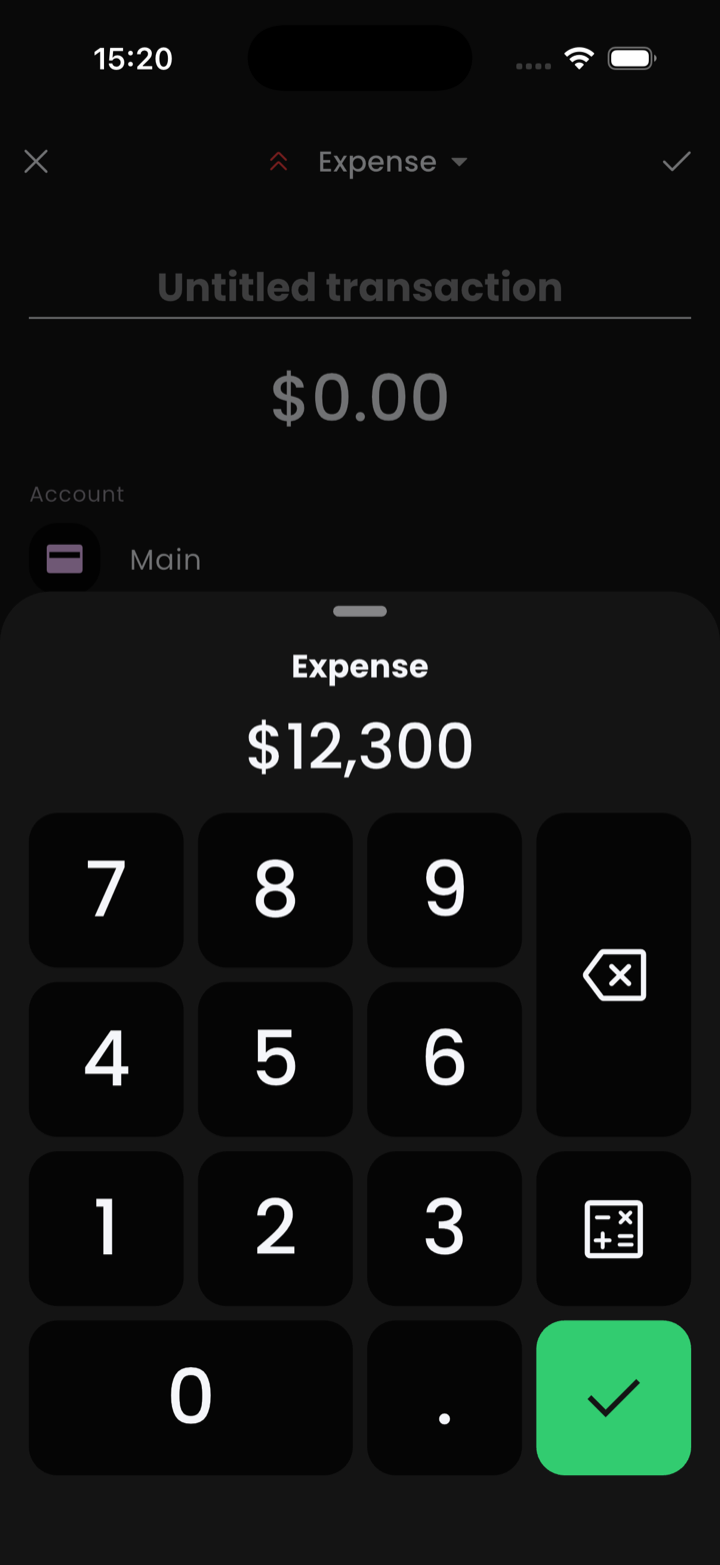
- Type the amount with the numpad. Tap the calculator icon for arithmetic.
- Tap the ✓ on the numpad to commit the amount. Dismissing the numpad without tapping ✓ discards whatever you typed.
- Optionally type a title in the Untitled transaction field above.
- Tap the Account row to switch accounts; the category and tag rows are right below.
- Tap the ✓ at the top right to save.
💡 Customize the entry flow
Recording income
Identical flow to an expense — tap +, choose Income, fill in amount, category, and account. Income transactions show in green and roll up separately from expenses in reports.
Recording a transfer
- Tap +, then choose Transfer.
- Pick the From account and the To account.
- Enter the amount. If the two accounts use different currencies, Flow will ask for the converted amount as well.
- Tap Save.
ℹ️ Cross-currency transfers
Editing & deleting
Tap any transaction in the list to open it, then tap any field to edit. To delete, scroll to the bottom of the edit page and tap Delete. Deleted transactions go to a trash bin where they can be restored or purged — no surprise data loss.
Backdating & future transactions
Tap the date field to change when a transaction happened. Backdating just sets the date and re-sorts the entry — nothing else changes.
Future-dating is treated specially. As soon as you pick a date in the future, Flow silently flips the transaction to pending — it stays out of your balance until its date arrives, so you can't accidentally inflate today's totals with a paycheck that hasn't landed. The Pending toggle on the edit page reflects the change; you can switch it off manually if you want a future-dated transaction to count as Pre-approved (it'll show that label in the home list and skip the approval prompt when its date arrives).
Title vs. note
- Title is short and shows in the transaction list. Use it like a label: "Coffee at Tim Hortons".
- Note is hidden until you open the transaction. Use it for the long stuff: "Split with Alex, they owe me 12,000".
Speed tips
- Swipe to duplicate — swipe a transaction from left to right in the list. A gray panel slides in with a copy icon; tap it to duplicate the entry. (Long-press doesn't do this.)
- Recurring — for anything you record more than twice a month, set it up as a recurring transaction instead.
- iOS Shortcut — automate Apple Pay purchases via the Shortcuts integration.
Bulk actions New in v0.22.0
To act on a batch of transactions at once, tap the leading icon (the small account or category icon on the left of any transaction row). The row turns into a selection chip — from there, tapping anywhere on any other row toggles it in or out of the selection. Press the system back gesture to exit selection.
The bottom action sheet exposes:
- Confirm all — only when everything selected is pending.
- Delete — moves the selection to the trash bin. Becomes Recover when you're viewing the trash.
- Change category — disabled if the selection contains a transfer or mixes currencies.
- Change account — same disable rules as Change category.
ℹ️ Where bulk actions work