Import & Export
Importing data
Pull transactions and full backups into Flow from a file.
What the Import screen offers
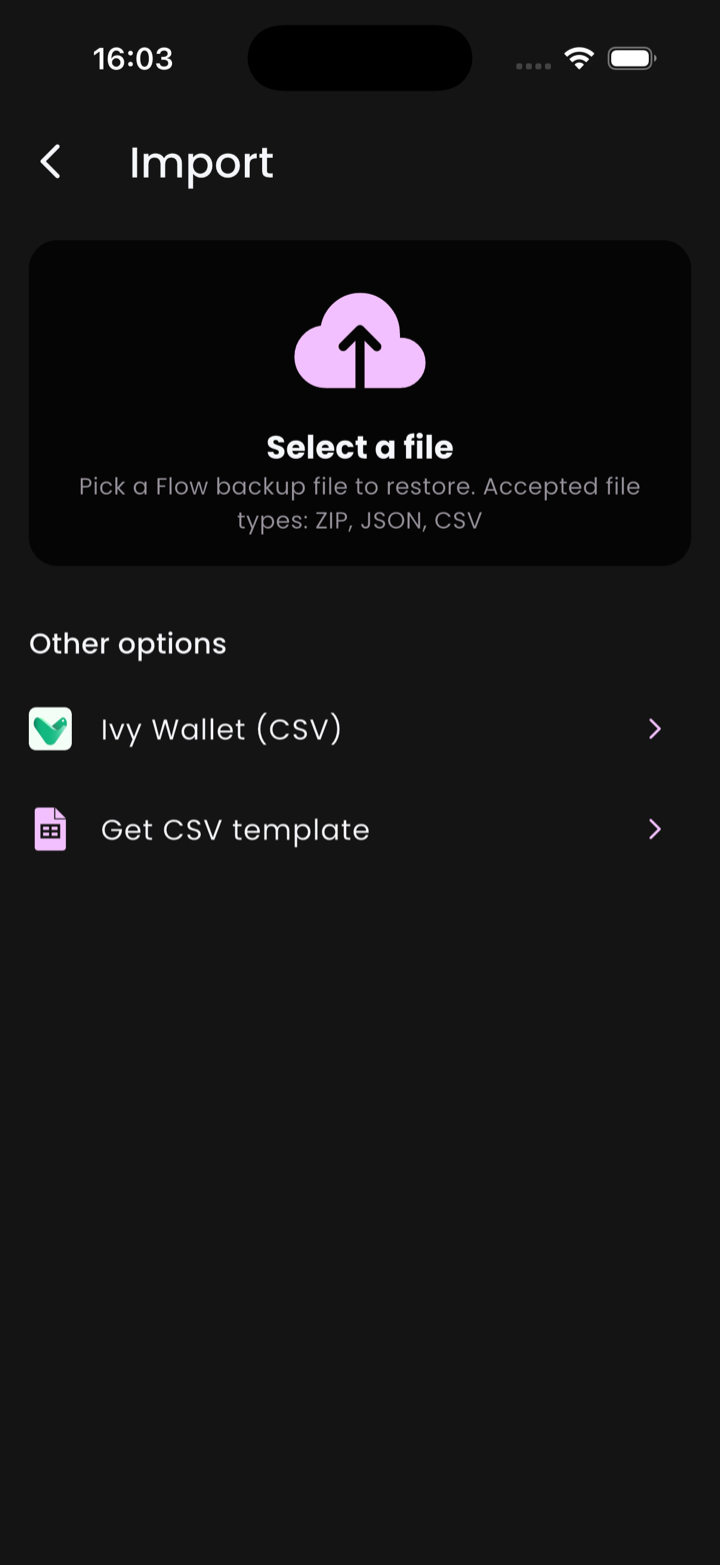
Open Profile → Import. You get one big Select a file card and an Other options section underneath.
- Select a file (ZIP / JSON / CSV) — Flow auto-detects which of the three you handed it. ZIP and JSON are full backups produced by another Flow install; CSV is Flow's own shape (see template below).
- Ivy Wallet (CSV) — a dedicated path for migrating from Ivy Wallet. Pick this if your CSV came from Ivy, since its column shape differs from Flow's.
- Get CSV template — saves an empty CSV with the columns Flow expects. Fill it in (in a spreadsheet app or by script), then bring it back via Select a file.
How to import
- Open Profile → Import.
- For a Flow backup or a Flow-shaped CSV, tap Select a file.
- For an Ivy Wallet export, tap Ivy Wallet (CSV) instead.
- Confirm. Flow tells you what it found before applying anything.
1 2 3
⚠️ Replace, not merge
Importing a ZIP or JSON replaces your current data. Back up first if you might want to roll back. There is no
deduplicating merge.
Moving between devices
Use ZIP. On the source device: Profile → Backup → As backup (zip). Save the file somewhere you can reach from the new device — iCloud Drive, Google Drive, AirDrop, email. On the destination device: Profile → Import. ZIP carries accounts, categories, tags, transactions, recurring rules, and attachments. CSV does not.
What if the import fails?
- Wrong file format — Flow only accepts ZIP, JSON, or its own CSV shape.
- CSV columns don't match the template — easiest fix is to re-export the template and copy your data into it.
If you've got a file Flow can't parse and you think it should be able to, open an issue on GitHub with a sample.