Import & Export
Auto-backup to iCloud
Set it once. Flow drops a fresh backup into your iCloud Drive on a schedule — no taps required.
ℹ️ iOS / macOS only
What gets uploaded
The same full-backup ZIP described in Backup & restore — every transaction, account, category, tag, and attachment, in one file. Each backup is stamped with the date and version of Flow that created it.
1. Make sure iCloud Drive is on
- Open the iOS Settings app.
- Tap your name at the top → iCloud.
- Confirm iCloud Drive is on.
- Scroll to apps that use iCloud and confirm Flow is enabled.
2. Enable iCloud sync in Flow
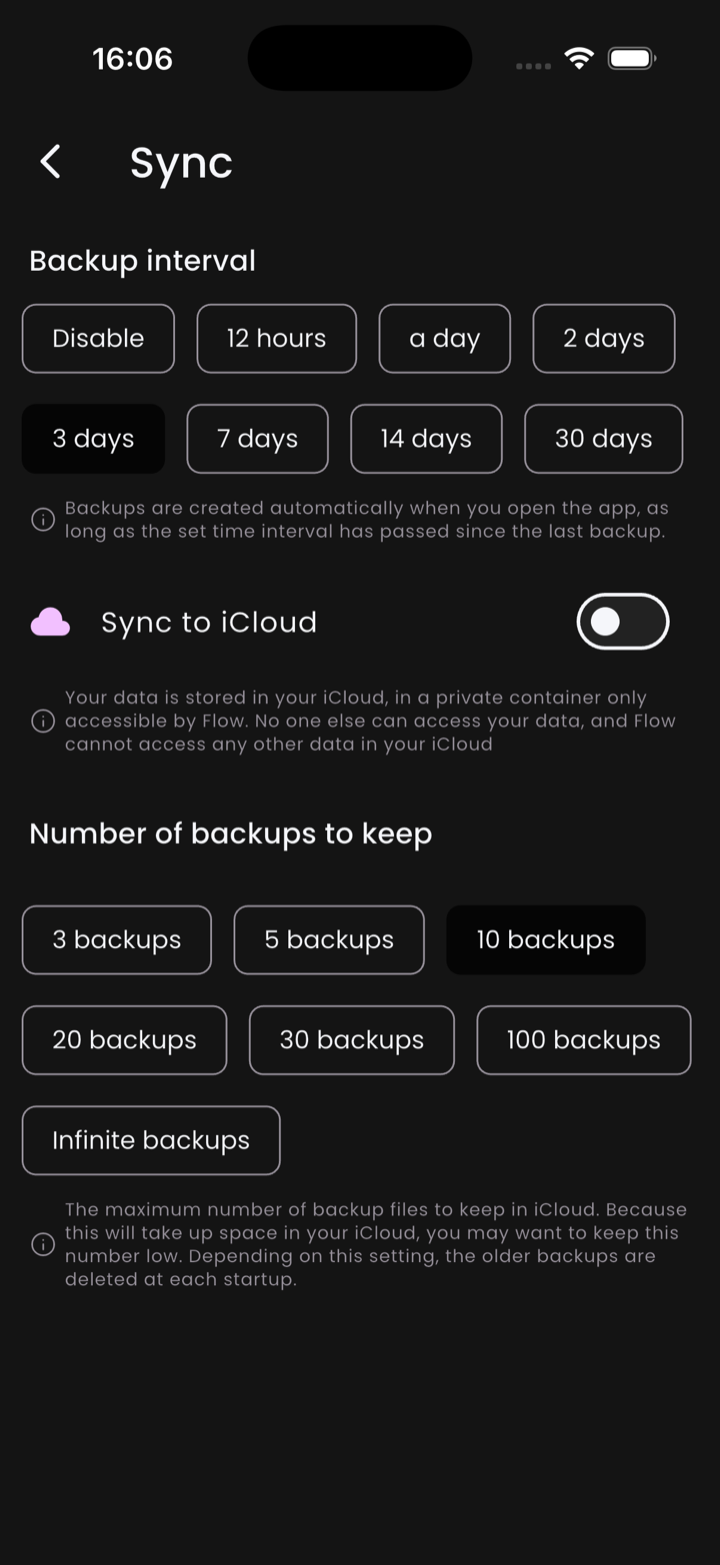
Open Profile → Preferences → Sync. Three controls:
- Backup interval — chips: Disable, 12 hours, a day, 2 days, 3 days, 7 days, 14 days, 30 days. Backups are created automatically when you open the app, as long as the interval has elapsed since the last backup.
- Sync to iCloud — the toggle that actually pushes backups up to iCloud Drive.
- Number of backups to keep — chips: 3, 5, 10, 20, 30, 100, Infinite backups. Older backups beyond that count are deleted at startup.
3. Verify it ran
Open the iOS Files app → iCloud Drive → Flow. You should see timestamped ZIP files. The Sync page also shows the last successful sync time.
Restoring from an iCloud backup
- Install Flow on the new device, signed in to the same Apple ID.
- Open Profile → Import.
- Pick a ZIP from your iCloud Drive's Flow folder using the file picker.
⚠️ iCloud quota
Who can read the file
Flow doesn't add any protection to the backup ZIP — it's a plain archive of your data. Anyone with access to your iCloud Drive can open it. If that matters to you, store backups somewhere with stricter access instead, and handle that protection yourself.