Basics
Attachments
Pin a receipt, photo, or PDF to any transaction so the paper trail lives with the record.
Every transaction in Flow can hold one or more files. Receipts are the obvious use, but the same feature works for invoices, contracts, screenshots of confirmation pages, anything you might want to find again.
Adding an attachment
- Open the transaction (or start a new one).
- Scroll to the Attachments section.
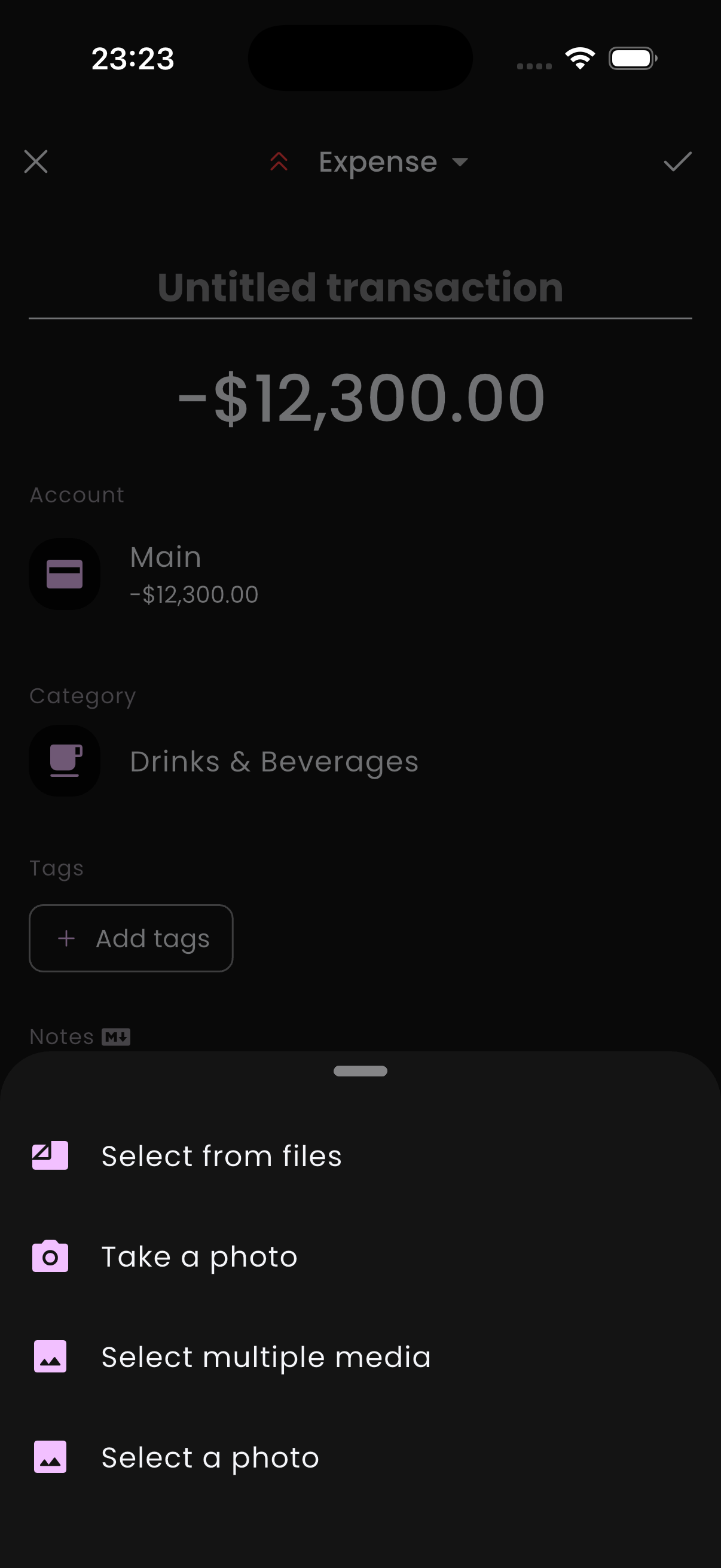
- Tap + Add, then pick from Camera, Photo Library, or Files.
- The file is copied into Flow's local storage and linked to the transaction.
ℹ️ Attachments stay on-device
Viewing & sharing
Tap any attached file to view it full-screen. From there you can share, save back to the system Files app, or delete the attachment. Deleting the attachment doesn't delete the transaction.
Storage considerations
Photos can be large. Each attachment is copied into Flow's local storage when you attach it (originals on your camera roll or Files app are untouched), and from then on it's part of every backup — manual or iCloud — until you delete it. If you keep a receipt for every transaction, expect your Flow data folder and backup ZIPs to grow accordingly.
💡 Receipts you can read in five years